Image tools
The image tools are under Tools then Image in the sidebar. It’s the busiest group, so this page is in three parts: making new images, working on photos you have, and restyling a photo.
Make a new image
Section titled “Make a new image”Images
Section titled “Images”Describe what you want to see, like “a red apple on a wooden table, photorealistic”, and AI makes it. You can pick the size, the quality (Standard or High) and how many images at once. The credit estimate follows those choices.
Thumbnail
Section titled “Thumbnail”Describe the background and write a headline. AI makes the image and burns the headline in crisply, so you don’t get the garbled lettering image models often produce when they write text themselves.
Carousel
Section titled “Carousel”Turn a topic into a multi-slide designed carousel, ready for Instagram and LinkedIn.
Chat Screenshot
Section titled “Chat Screenshot”Describe a scenario. AI writes the conversation and renders a realistic chat screenshot for the platform you pick. If you only need the conversation text, use Chat Script in the text tools.
Work on a photo you have
Section titled “Work on a photo you have”Background Studio
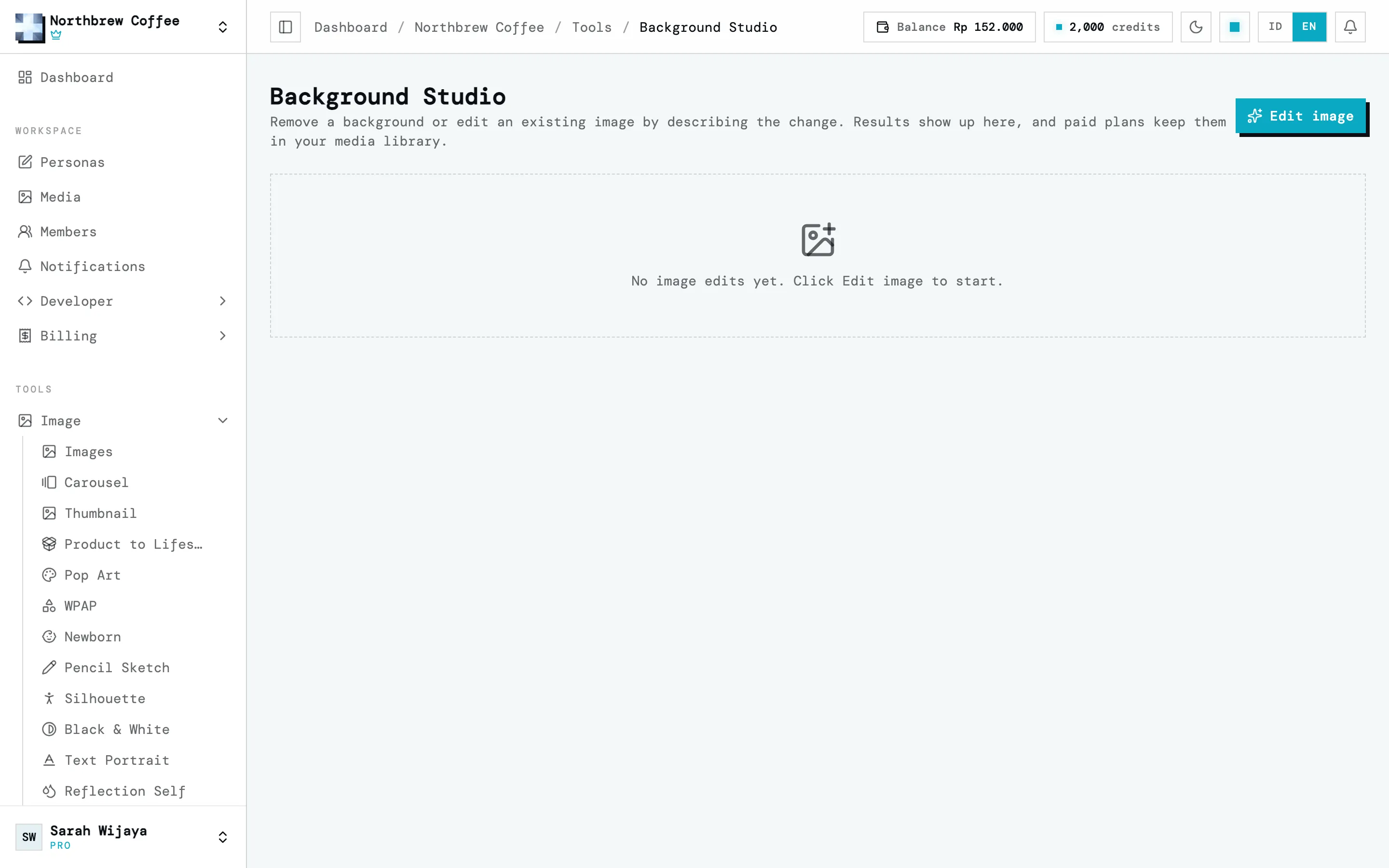
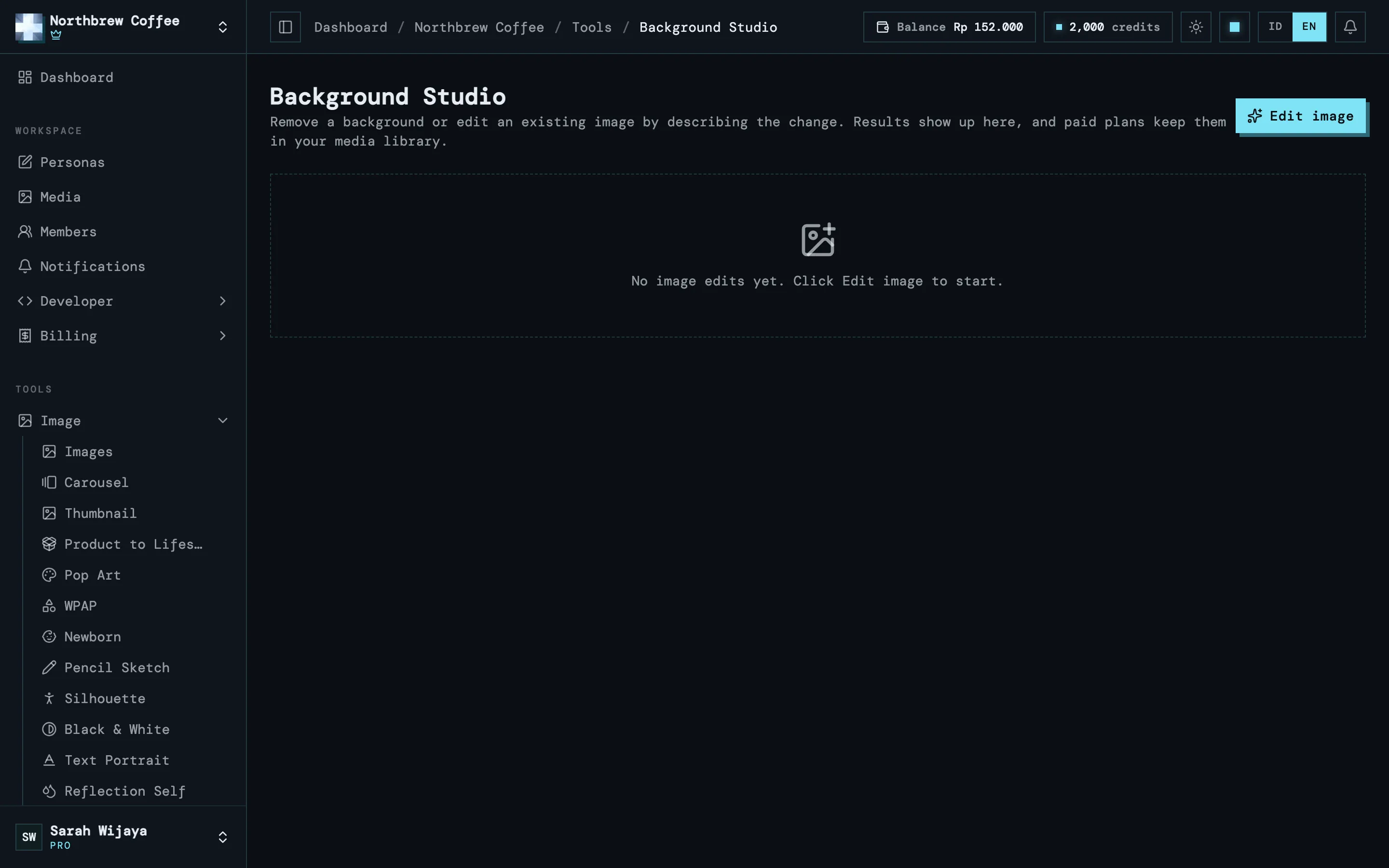
Section titled “Background Studio”Remove a photo’s background, swap it for something else, or change something by describing it. Press Edit image to start.
| Mode | What you get |
|---|---|
| Edit | Describe the change, like “replace the background with a sunny beach, keep the subject sharp”. |
| Remove background | The background is dropped, leaving just the subject. |
| Solid color | The background becomes one colour. |
| Gradient | The background becomes a gradient. |
| Background image | The background is replaced with another image you pick. |
| Blur background | The subject stays, the background is blurred. |
In Edit mode the first slot is the main image, and you can add up to 3 more as style or composition references. The other modes work on one image.
Product to Lifestyle
Section titled “Product to Lifestyle”Upload a product photo and pick a scene. AI places your product in a realistic lifestyle setting, handy for catalogue shots without a photo shoot.
Restyle a photo
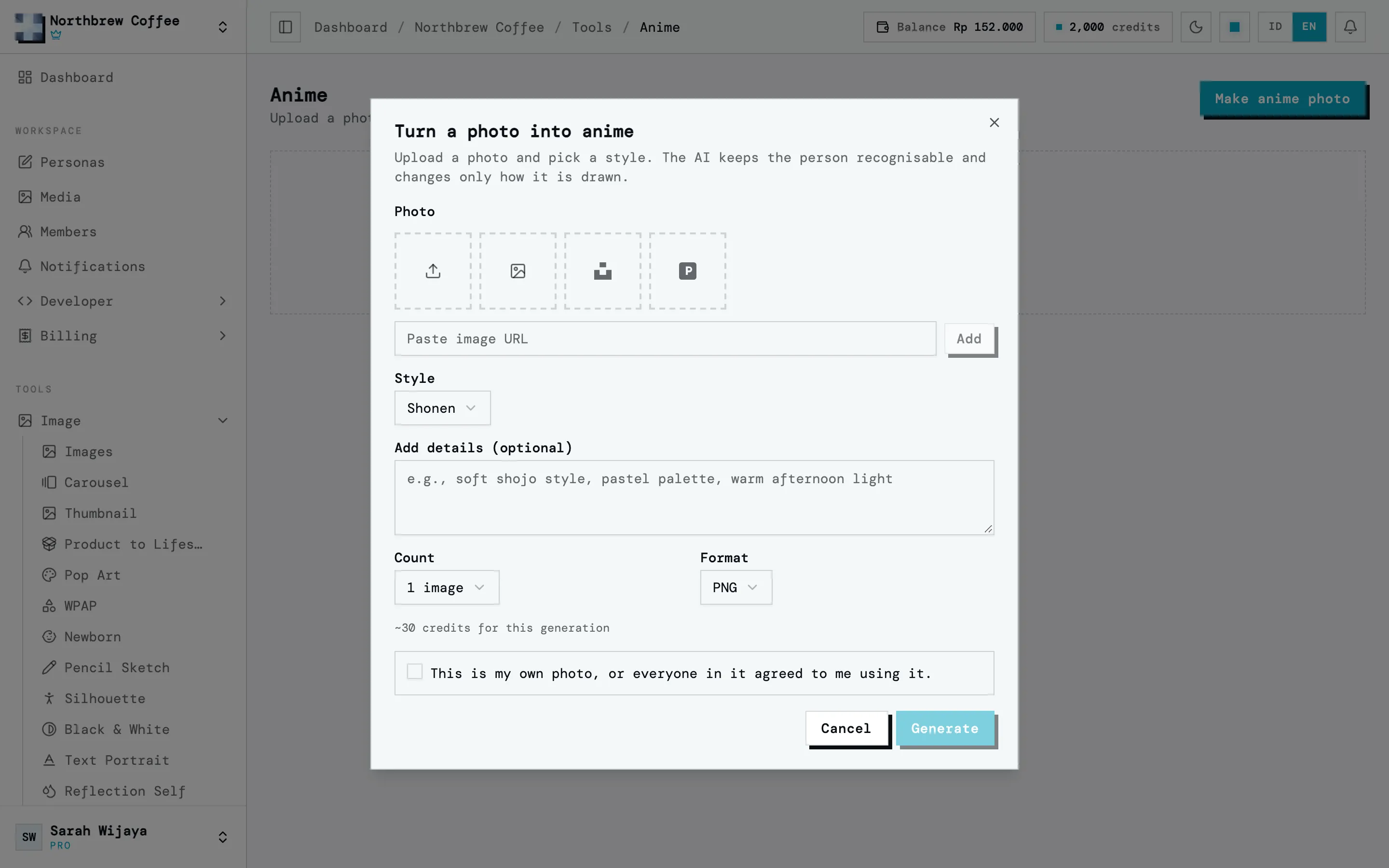
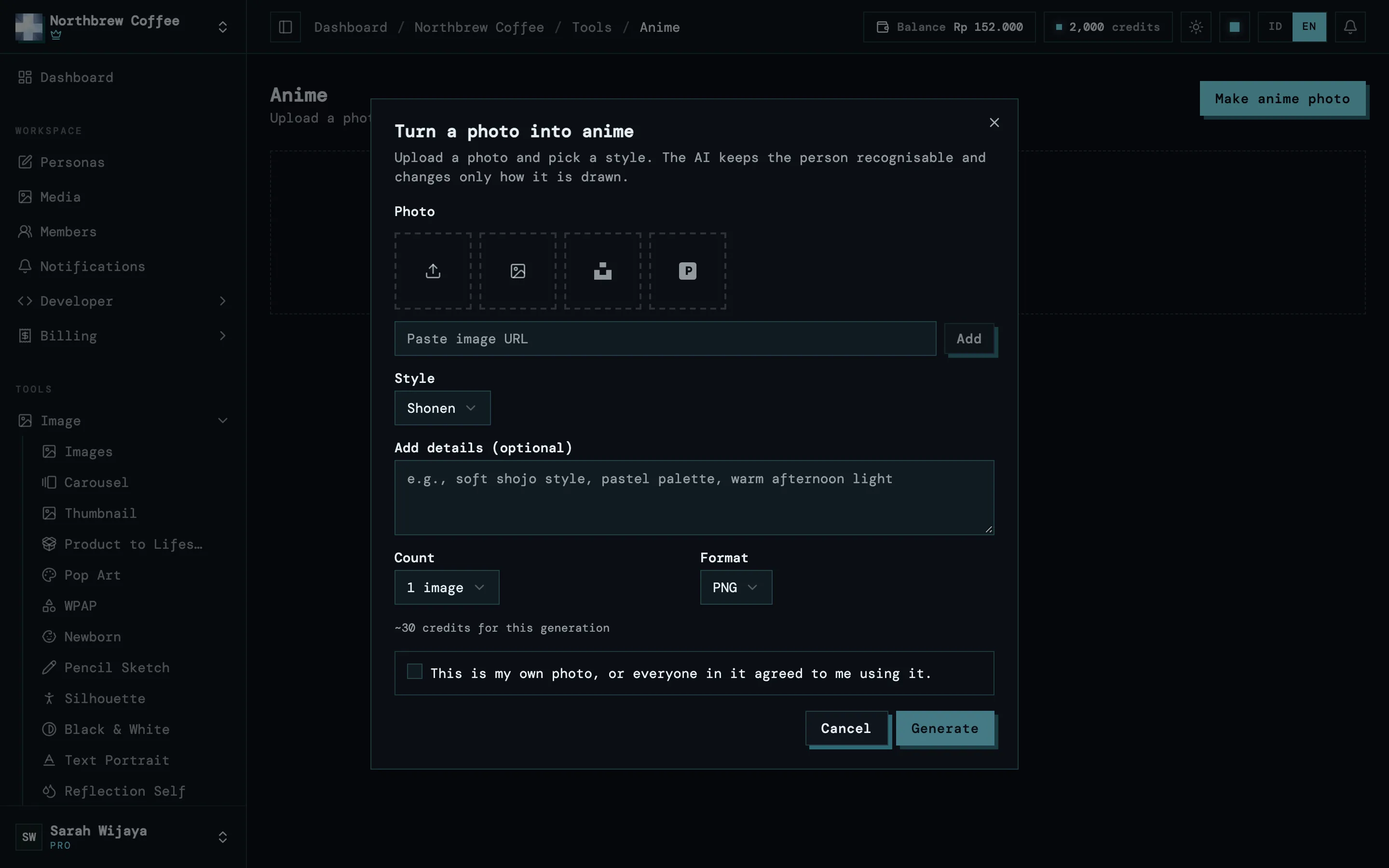
Section titled “Restyle a photo”Every tool below works the same way: upload a photo, pick a style or whatever options it offers, and run it. People in the photo stay recognisable, only the way it’s drawn changes.
| Tool | What you get |
|---|---|
| Cartoon | Redrawn as a cartoon. |
| Anime | An anime illustration. |
| Comic | A comic panel. |
| 3D Render | Re-rendered in 3D. |
| Watercolor | Repainted in watercolour. |
| Flat Vector | A flat vector illustration. |
| Sticker | The subject as a die-cut sticker. |
| Pop Art | A bold pop-art look. |
| WPAP | Bold geometric flat-colour facets, in the style of Wedha’s Pop Art Portrait. |
| Pencil Sketch | Redrawn in pencil, charcoal or line art. |
| Silhouette | The subject as a clean silhouette. |
| Black & White | A striking monochrome image. |
| Text Portrait | The portrait rebuilt out of your text, readable up close and a face from afar. |
| Reflection Self | The subject’s reflection shown as an aspirational version of themselves. |
| Retro Photo | The film, colour and lighting of the decade you pick. |
Photos of children
Section titled “Photos of children”Two tools are made for photos of children:
- Newborn: upload a baby photo and pick a profession, and AI dresses them up, keeping the face.
- Age Transform: pick an age, and AI re-renders the whole body at that age, not just the face.