
AI credits
Every AI tool in Wujud runs on credits. One meter, one credit balance, for any tool. Every tool shows its estimate before it runs.
Credit packs
Section titled “Credit packs”Credits are bought from your balance, under Settings then Billing, on the Add-ons tab. Pick a pack, check the balance after it in the confirmation dialog, and buy.
| Price | Credits |
|---|---|
| Rp10.000 | 125 |
| Rp25.000 | 325 |
| Rp49.000 | 650 |
| Rp99.000 | 1,400 |
| Rp199.000 | 3,000 |
| Rp499.000 | 7,800 |
If a purchase fails, nothing is taken from your balance.
How long credits last
Section titled “How long credits last”Credits you buy stay usable for 12 months after your last credit purchase. Every time you buy another pack, all of them get the longer date.
Paid plans also add bonus credits every month. Bonus credits last one billing period and reset when the plan renews. Wujud spends bonus credits first, then the ones you bought, and the ones you bought aren’t reset with them.
Reading your credit balance
Section titled “Reading your credit balance”Open AI Credits in the workspace’s Billing group.
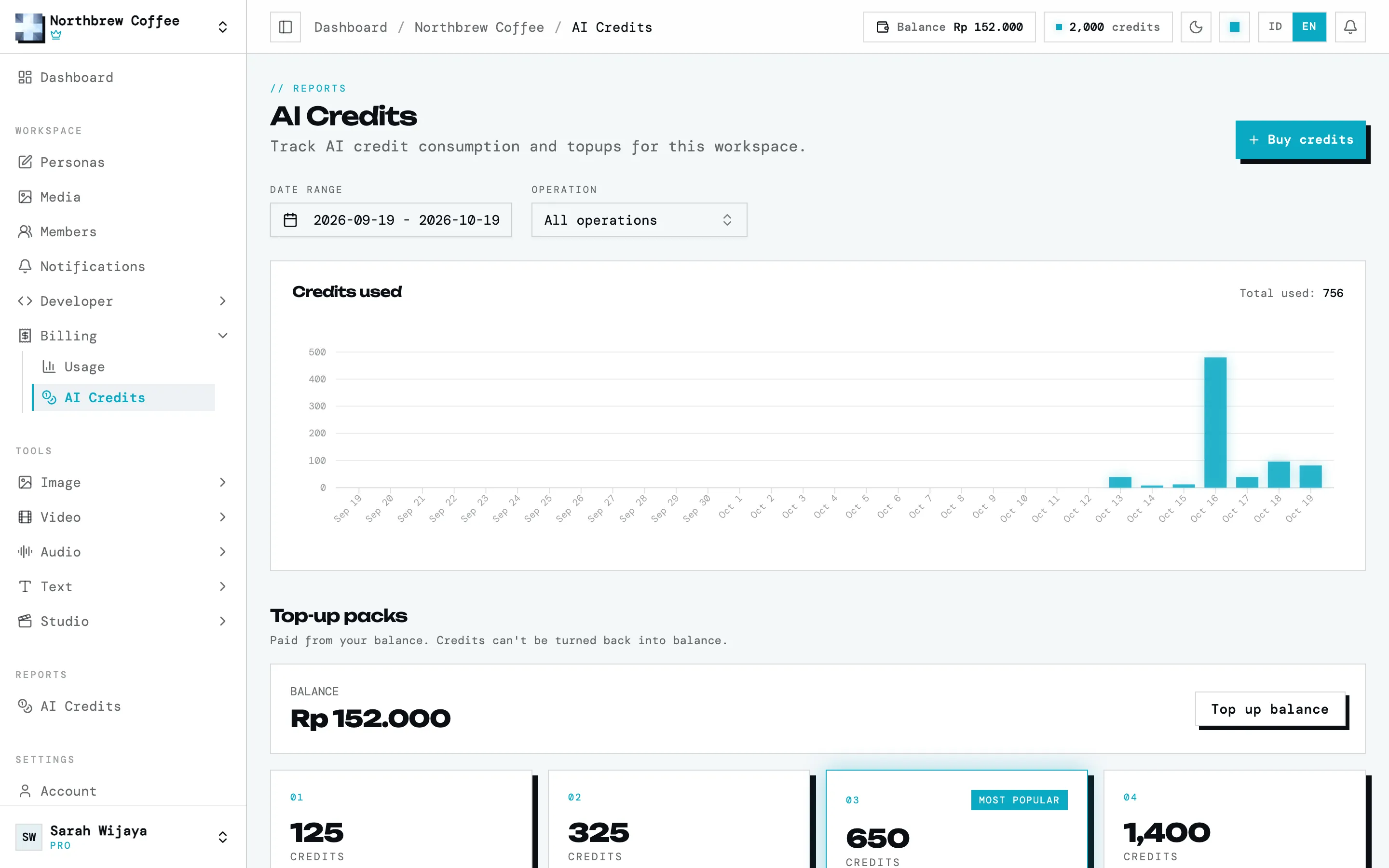
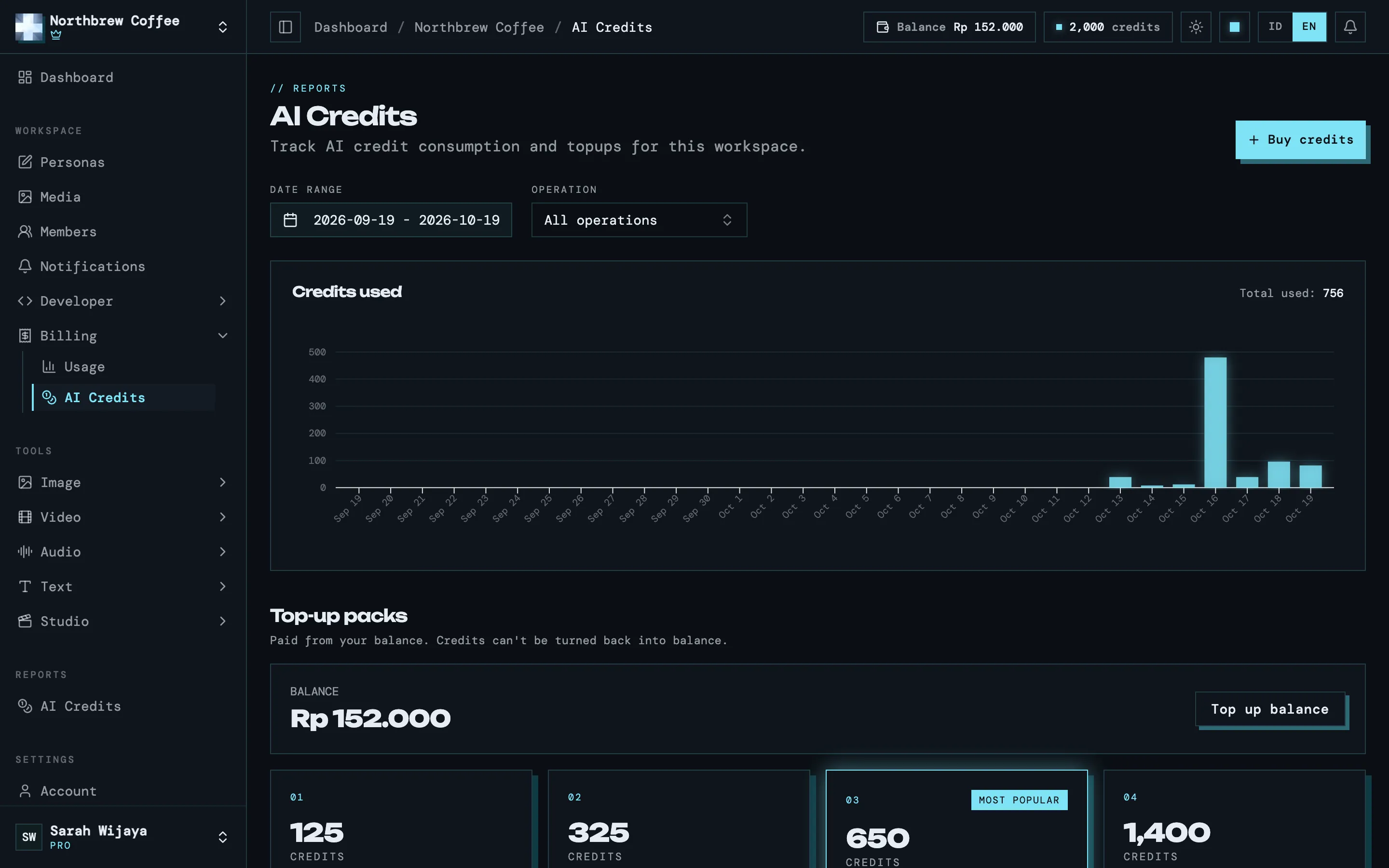
Two numbers worth understanding:
- Available is what you can spend right now.
- Reserved is credits held by jobs that are still running. Wujud sets them aside when a job starts and settles up when it finishes, so two big jobs at once can’t overspend your balance. If a job fails, they come back on their own.
When your credits won’t cover a tool, it tells you before it starts instead of failing halfway.
Credits on the Billing page
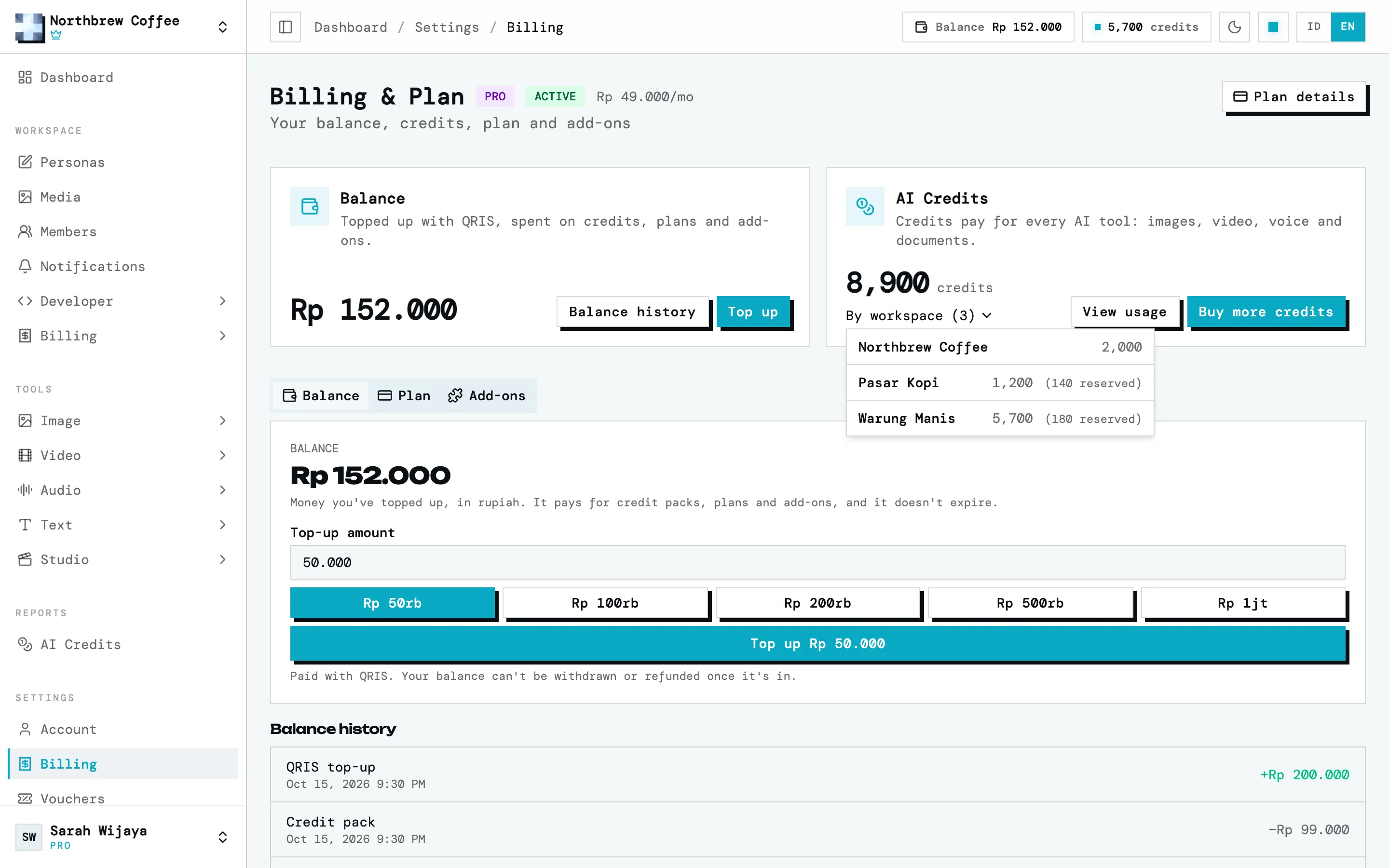
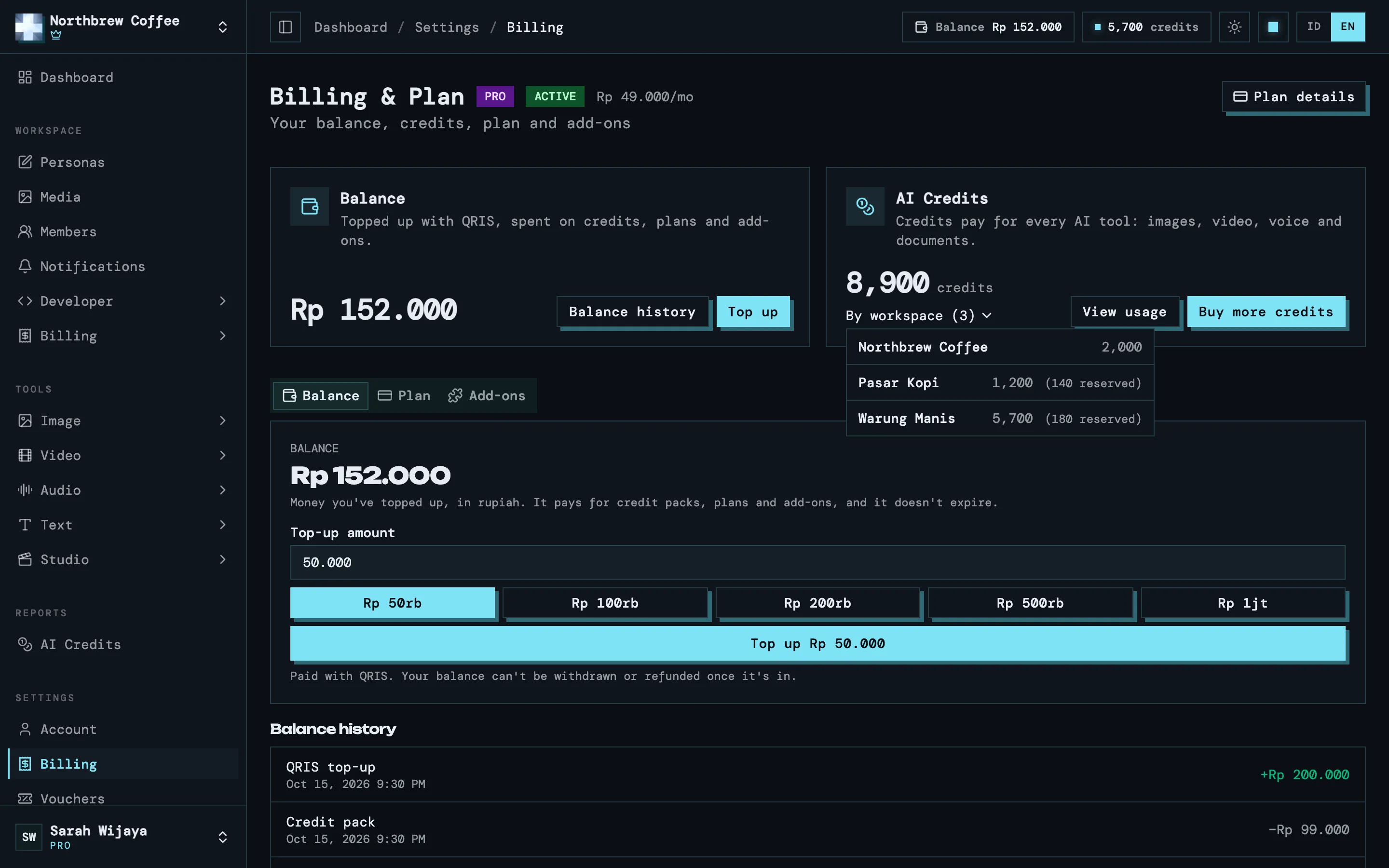
Section titled “Credits on the Billing page”Settings then Billing also has an AI Credits card, next to the Balance card. It shows your total credits and two buttons: View usage opens the credits report, and Buy more credits takes you straight to the credit packs on the Add-ons tab.
Once you’ve allocated credits to particular workspaces, a By workspace button with your workspace count appears under the total. Press it to see the breakdown: the credits available in each workspace, plus what’s reserved by jobs still running. The breakdown opens over the page, so the card doesn’t grow. Click outside it or press Esc to close it.
Without allocations every workspace draws from the same pool, so the button is replaced by a line saying the balance is shared across your workspaces.
The credits report
Section titled “The credits report”To see where credits went, open Reports then AI Credits. It’s for the account owner and covers every workspace you own.
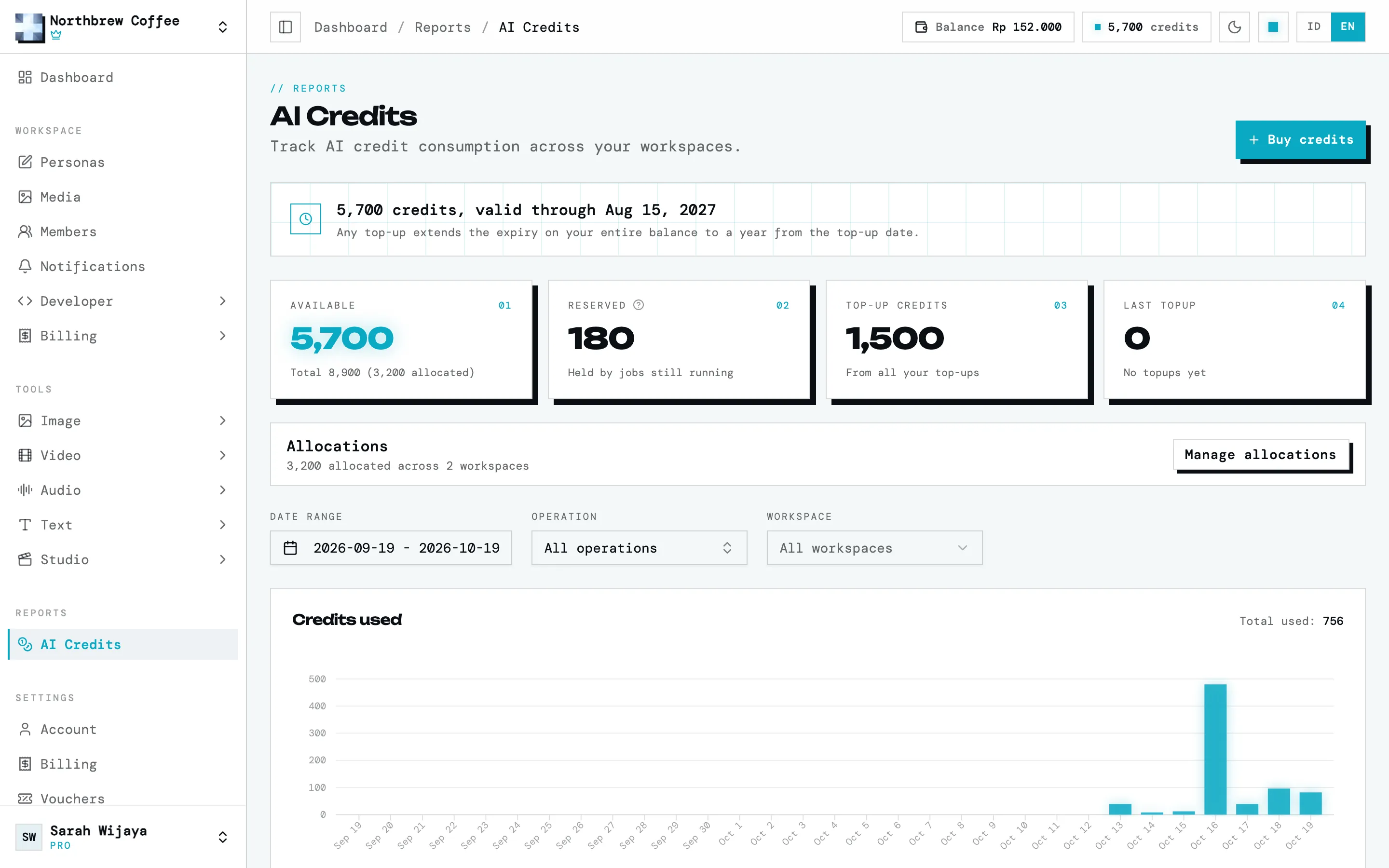
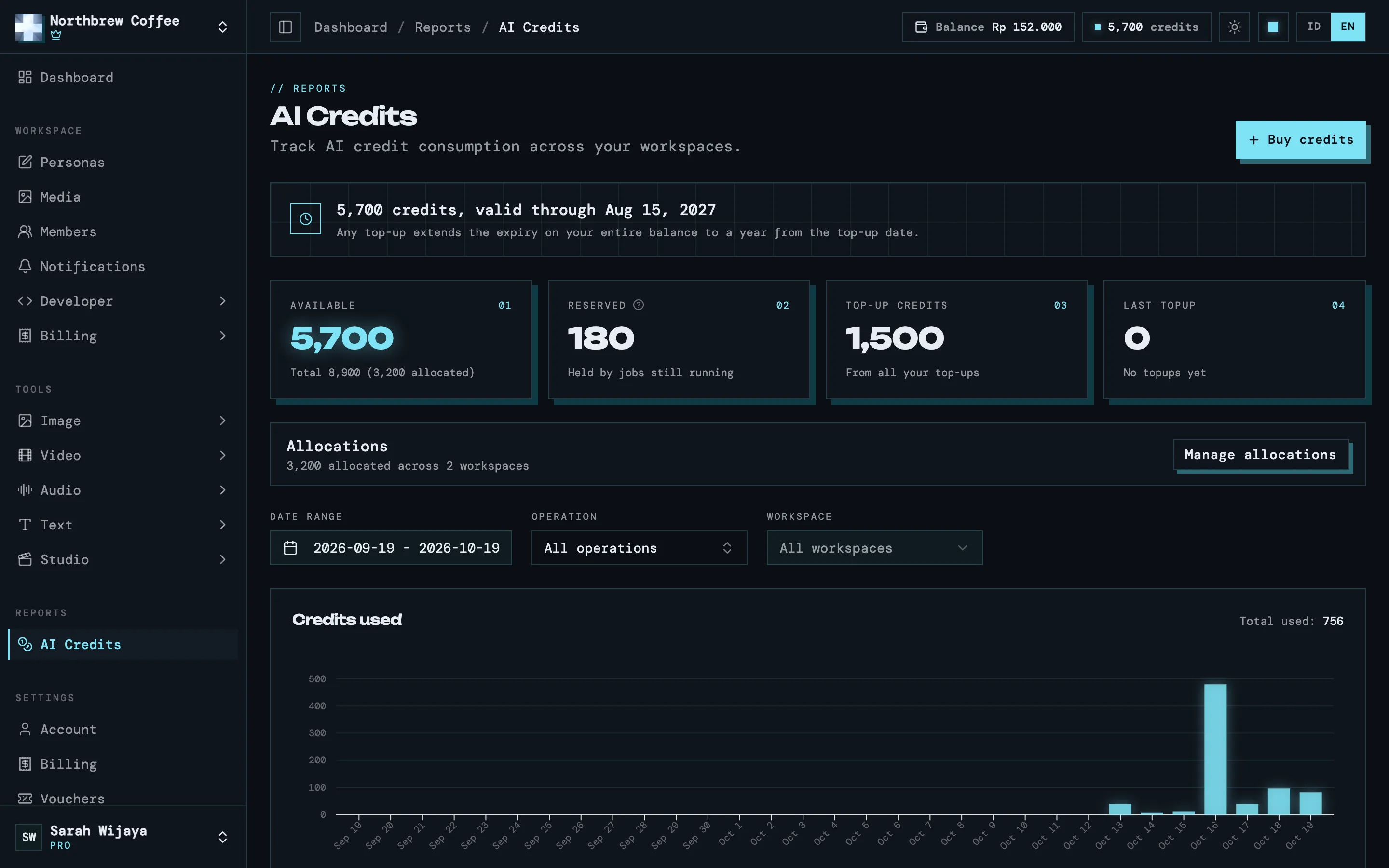
The filters across the top are date range, operation (like image edits or text to speech) and workspace. Below them are a usage chart, activity per job, your credit purchase history, and the full trail of credit changes on your account.
Splitting credits per workspace
Section titled “Splitting credits per workspace”Credits belong to your account, not to a workspace. So by default every workspace you own draws from the same pool. For most people that’s right.
If you want to cap what one workspace can spend, like a client’s, allocate credits to it from Reports then AI Credits, under Manage allocations. Allocated credits are set aside from the pool, and that workspace can only spend its own allocation.
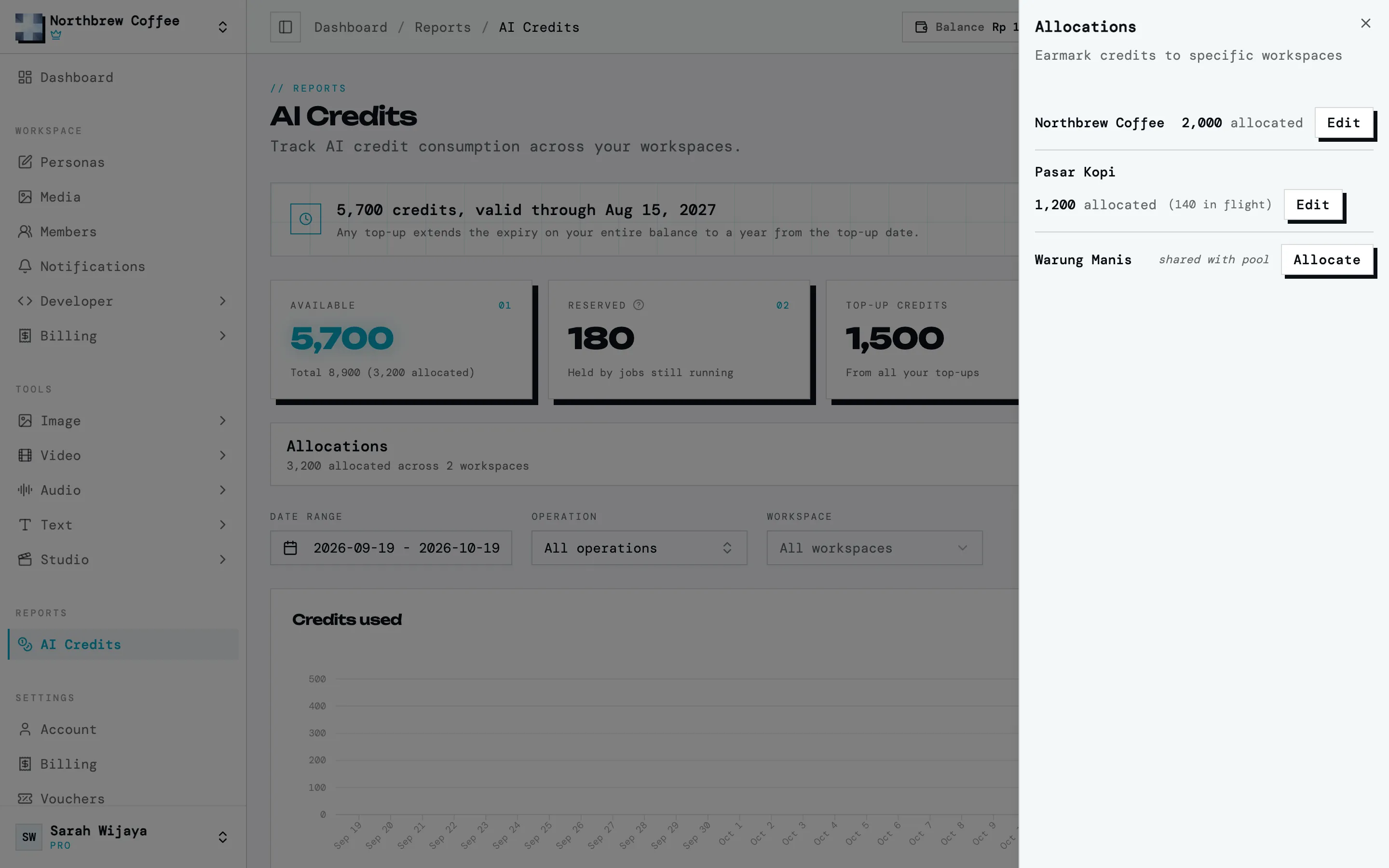
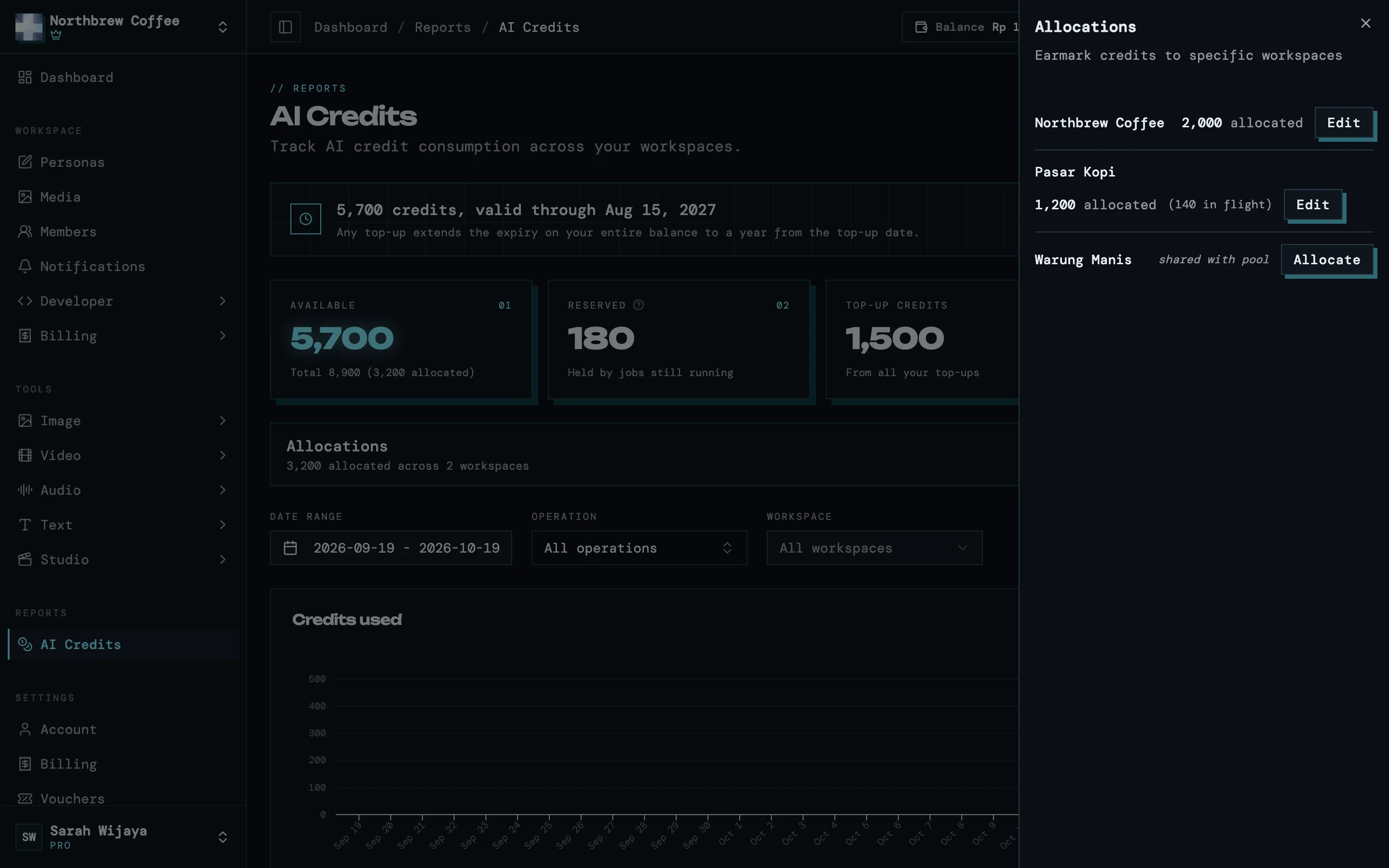
- You can take them back. Returning credits to the pool is the same dialog.
- Reserved credits can’t be moved. Wait for the job to finish first.
- You can’t allocate more than you have.